Indigo N700 Configuration
Introduction
Welcome to the IndiGo N700 Configuration Guide, this guide is aimed to provide details on the configuration process when setting up the Indigo N700 device. This process is important in order to ensure a successful implementation and a seamless flow of transactions.
Objectives
The Objective of this learner guide is to outline the value proposition of IndiGo Cloud and what benefit it brings in comparison to the existing environment of Indigo implementation.
The learning covers a step-by-step screen representation that outlines the configuration process to be followed when loading a Terminal Device (N700).
Background
What is IndiGo?
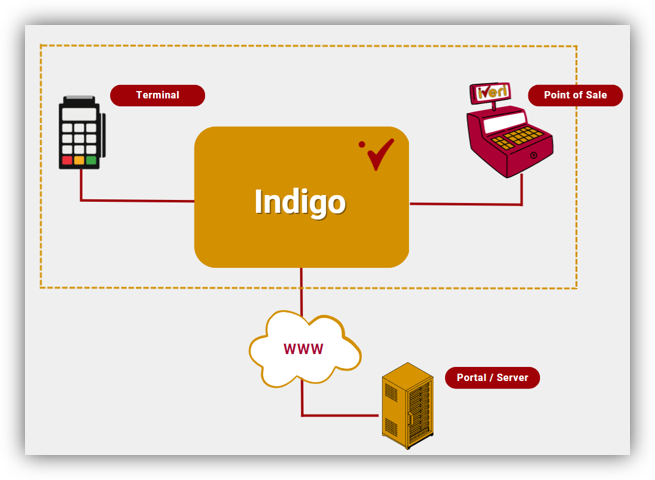
IndiGo is a piece of software that has supported and continues to support multi-lane stores. IndiGo is based on delta, in which delta is responsible to aggregate (i.e., group) terminals used for massive and smaller implementations in the cardinal space.
IndiGo aggregates on behalf of the portal, meaning it takes all the store’s POS (terminal)
connections and only sends the transaction data to the portal.
Model Representation
Traditional Indigo Model (On-Site)
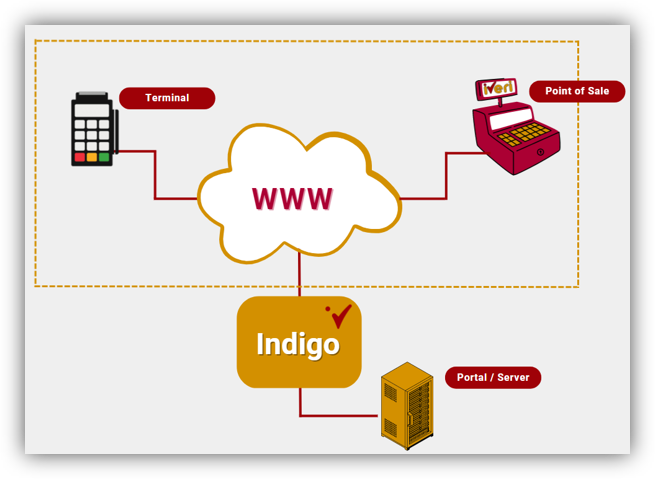
Indigo Cloud Model
Indigo - Value Proposition
The IndiGo solution will not be affected by any infrastructure changes that may occur in the store due to the solution being based in the cloud environment.
IndiGo Features
This means:
- The Indigo solution will be contactable by all stores
- Maintenance on the solution is minimal
- Indigo does not impact the business environment and how it operates (SLA).
- Terminal configurations will have no to less dependence on iVeri as trade link will now be able to have the capability to configure their own equipment, as and when terminals need to be swapped and configured.
- Banks and/or merchant’s will be able to increase efficiencies as they will be able to support these installations, as they will be able to investigate, read and understand logs
Role Players
- Integrators – Handle the POS terminal configuration.
- Acquiring Bank - handle the merchant take-on, on Gateway Admin and Cardinal Back Office. The acquiring will also configure the device on the cardinal BackOffice.
Terminal Configuration
The terminal configuration is another important element of this integration to IndiGo Cloud. There is a current connection that a terminal makes with the IndiGo solution which is called a “Sign on”.
For this to happen correctly, there is a terminal configuration that needs to be done on the terminal devices. Let us cover these steps to configure devices, as this process slightly varies based on the type of terminal the merchant is using.
Note:
- All devices will connect to the server on the Remote Ports 9369 and 9080 is for transaction posting (and for the channel).
- These are channels (or ports we use) and are configured in the backend of the BackOffice Software, which is always a constant port for all servers.
Terminal Configuration Process
This process in done by the Integrator. When configuring the device, this is the first step of the process that is required before we can link the devices to the Indigo Cloud.
Getting to know your N700 Device:
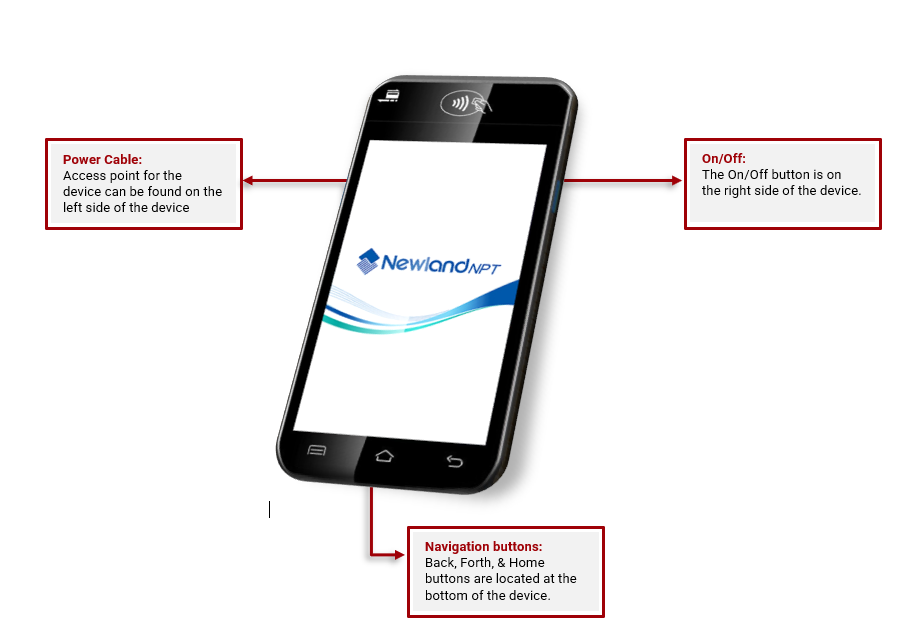
This document assumes the N700 has the following applications pre-installed:
- AR Installer
- AR SFTP
- AR PED
To verify if the 3 applications are installed, start-up the device and on the home screen, navigate to
the Gallery using the UP arrow, among other applications the following should be pre-installed:

NOTE: If the N700 does not have any of the above applications, iVeri should be engaged.
Prerequisite Requirements
- Device must be loaded on the Gateway Admin Website and on the Indigo Cloud
- There must be a merchant profile in which the N700 device is loaded against in Indigo Cloud
Step Turning on the N700 Device Actions
1.
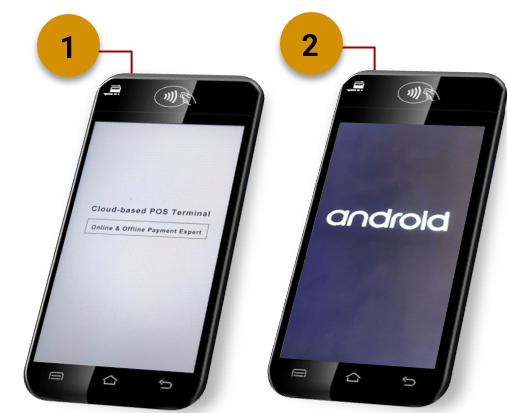
On start-up of the N700 device, the user will go through the attached screens:
1. Online / Offline screen will appear.
2. The Android start-up screen will appear and load the applications for the N700 device.
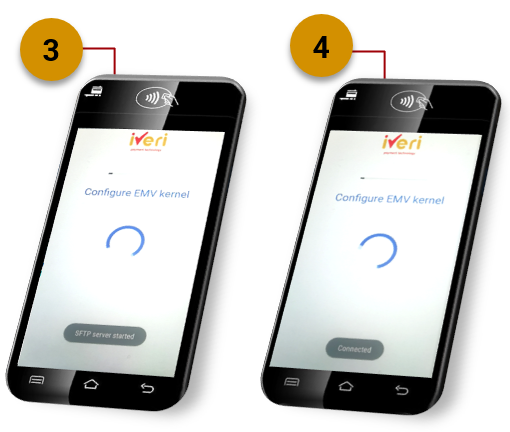
3. Once the Android startup is complete, the EMV Kernel will configure.
The Secure File Transfer Protocol (STFP) server will automatically start.
4. Once the STFP has completed, the Device will display as connected, ready for configuration.
Step Accessing the Support Menu Actions
2.
Purpose:
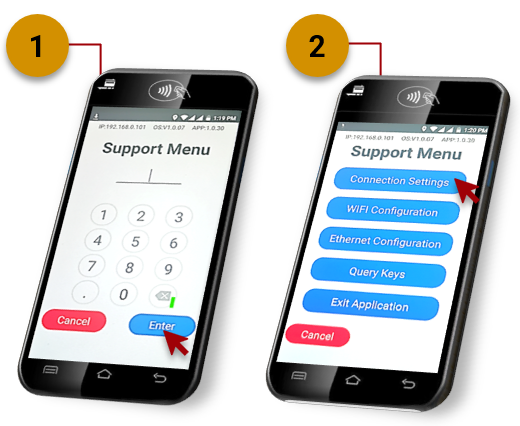
The purpose of accessing the support menu is to configure the payment application on the Device.
1. To access the Support menu, Tap 5 times on the iVeri Logo.
You will be prompted to enter a password: 12569.
2. The Support menu will now appear to the user.
Access Connection Settings:
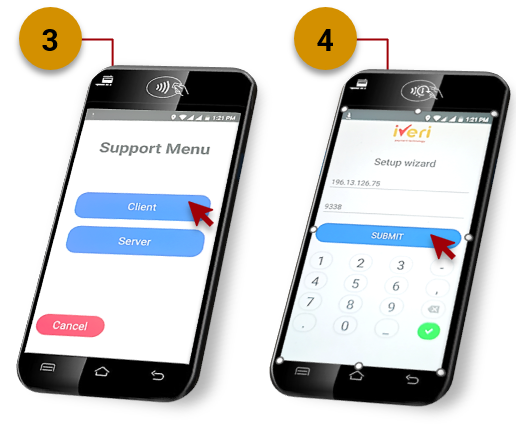
The purpose of configuring the connection settings, is to add the Indigo Cloud IP address and Port in order to process transactions.
3. Select ‘Client’ from the Support Menu.
4. From the Setup Wizard:
IP/Port Configuration:
CIM:
Terminal: 196.13.126.10
Port: 9338
CBZ:
Terminal: 196.13.126.139
Port: 9338
Click on submit when done.